
Zippykind is delivery software built from dozens of small, precise tools. A feature like route optimization is really a set of tools working together: a polygon you draw on the map, a stop list you drag into order, a switch that sends the finished route to a driver. This page walks through the dispatch tools inside Zippykind, what each one does, and which feature it belongs to, so you can find the right tool for the job the first time.
Route planner and route builder tools
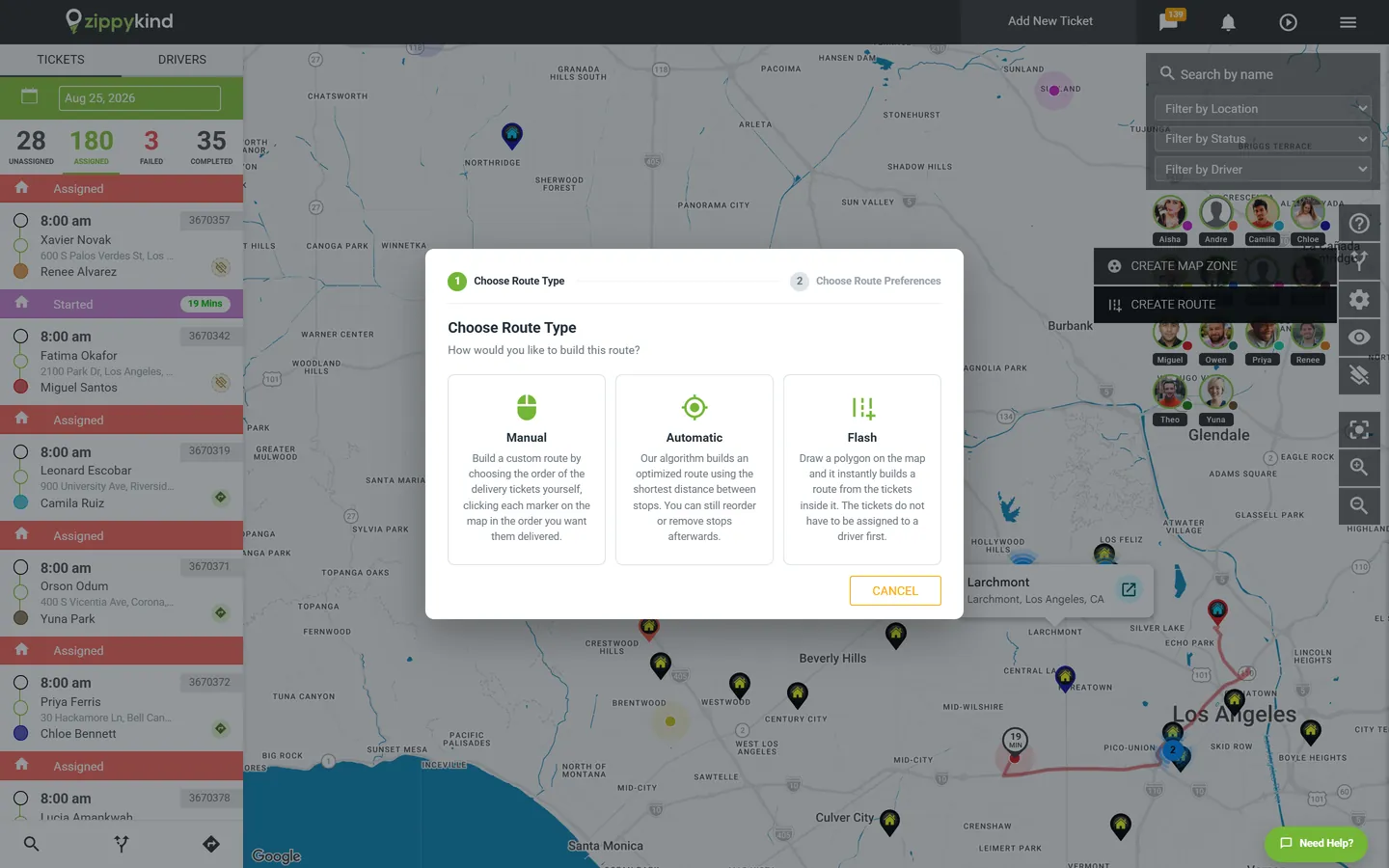
Every route in Zippykind starts in the route planner on the dispatch dashboard. There are three ways to build one, and each is its own tool.
- Manual route builder. Pick the stops and put them in the order you want. The route builder shows the distance and drive time for the whole route as you add each stop.
- Automatic route optimization. Select up to 200 stops and let route optimization order them for the shortest drive, starting from the pickup location or from the driver's home address.
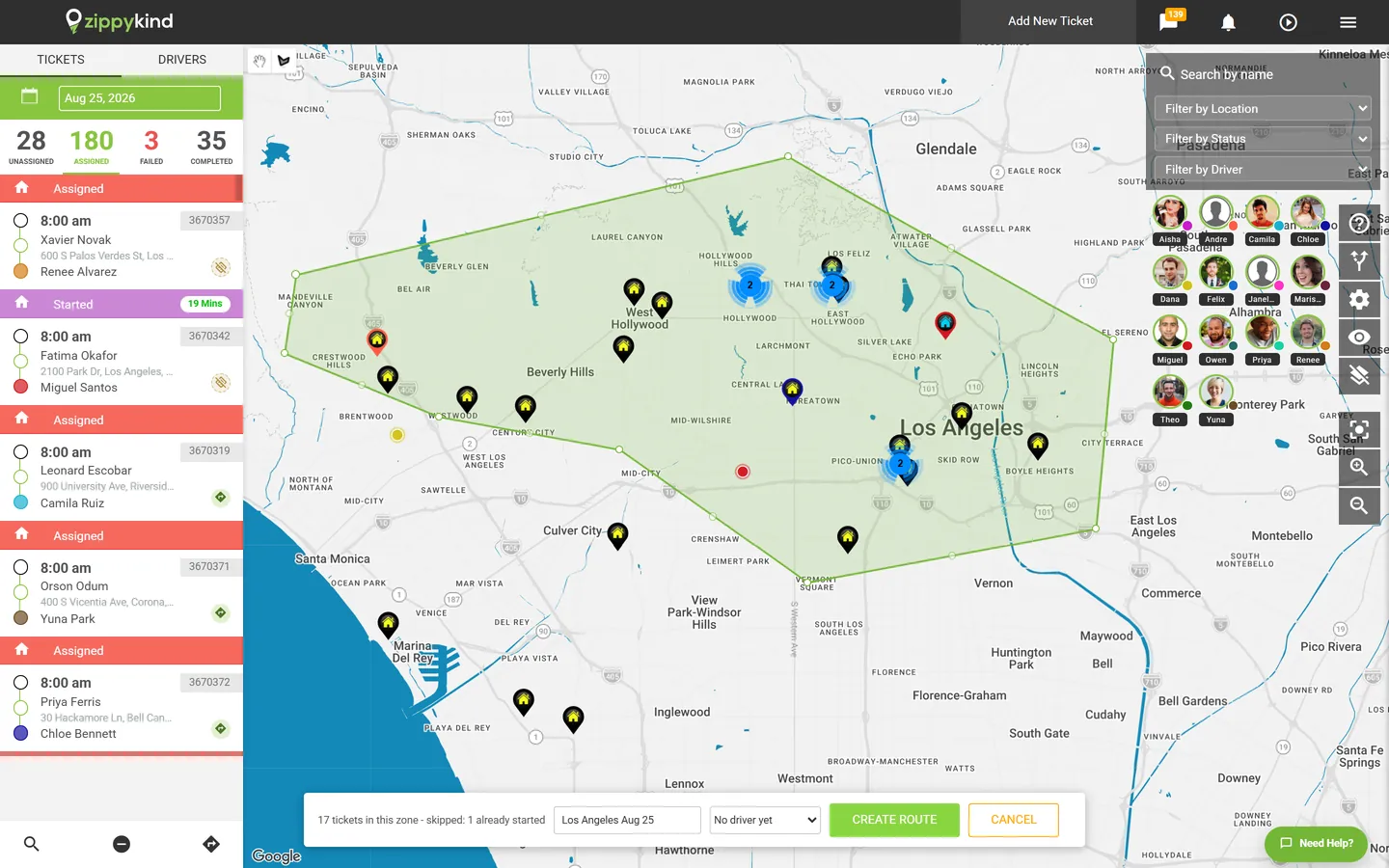
- Flash route polygon tool. Draw a shape on the map and Flash Routes instantly builds a route from every ticket inside it. It is the fastest route builder in the platform when your deliveries cluster by neighborhood.
The polygon tool also counts the tickets inside the area before you commit, so you can see the size of a route before a driver ever sees it.
Route editor tools
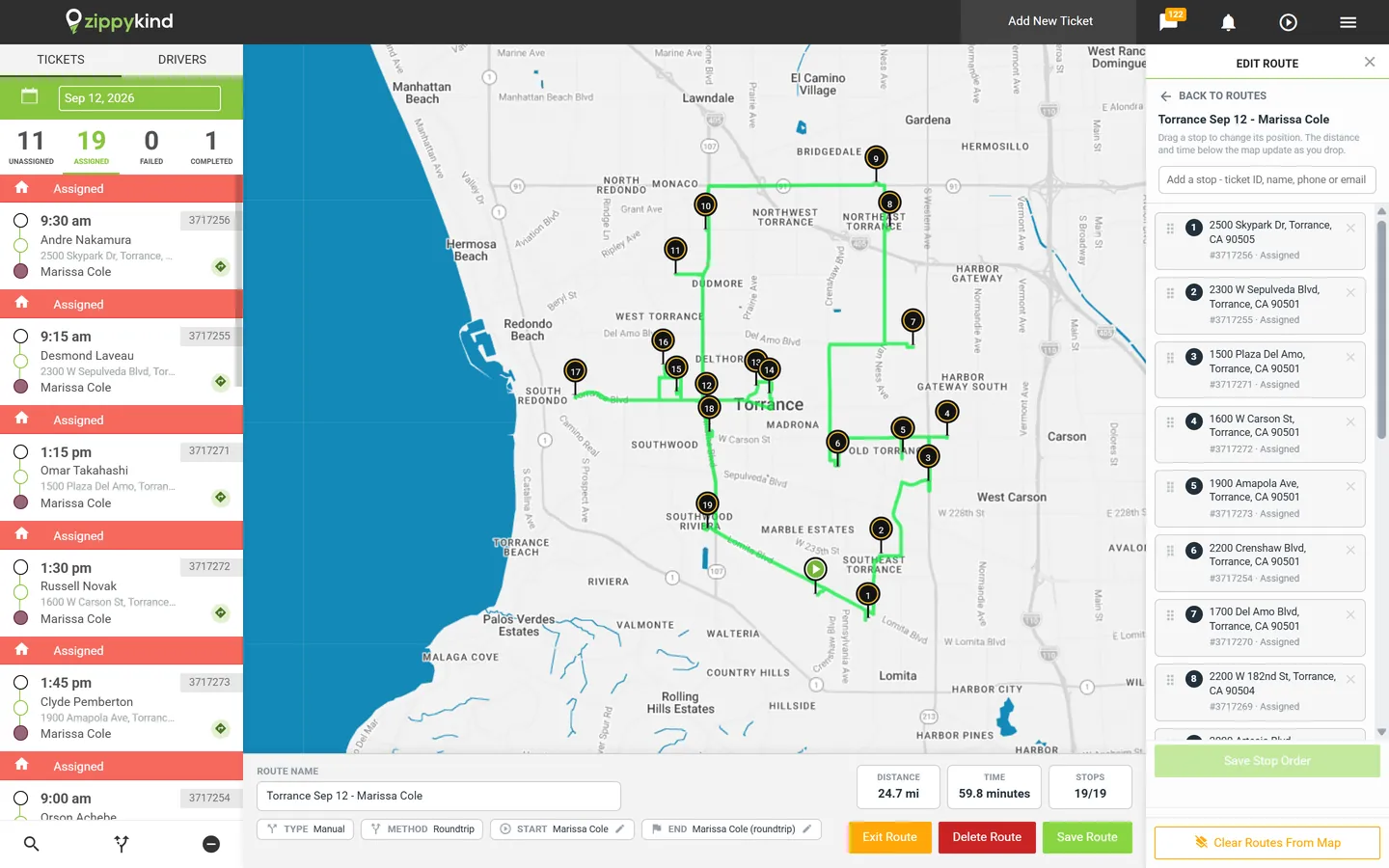
Once a route exists, the route editor keeps it honest. Drag a stop to a new position and the distance, drive time and stop count update as you drop it. Add a stop and the route planner reprices the whole route in front of you, with the new stop's own leg distance and time beside it. Turn on Show All ETAs to see an arrival estimate on every stop, or Show Numbered Route to lay out the order at a glance.
Map zone tools
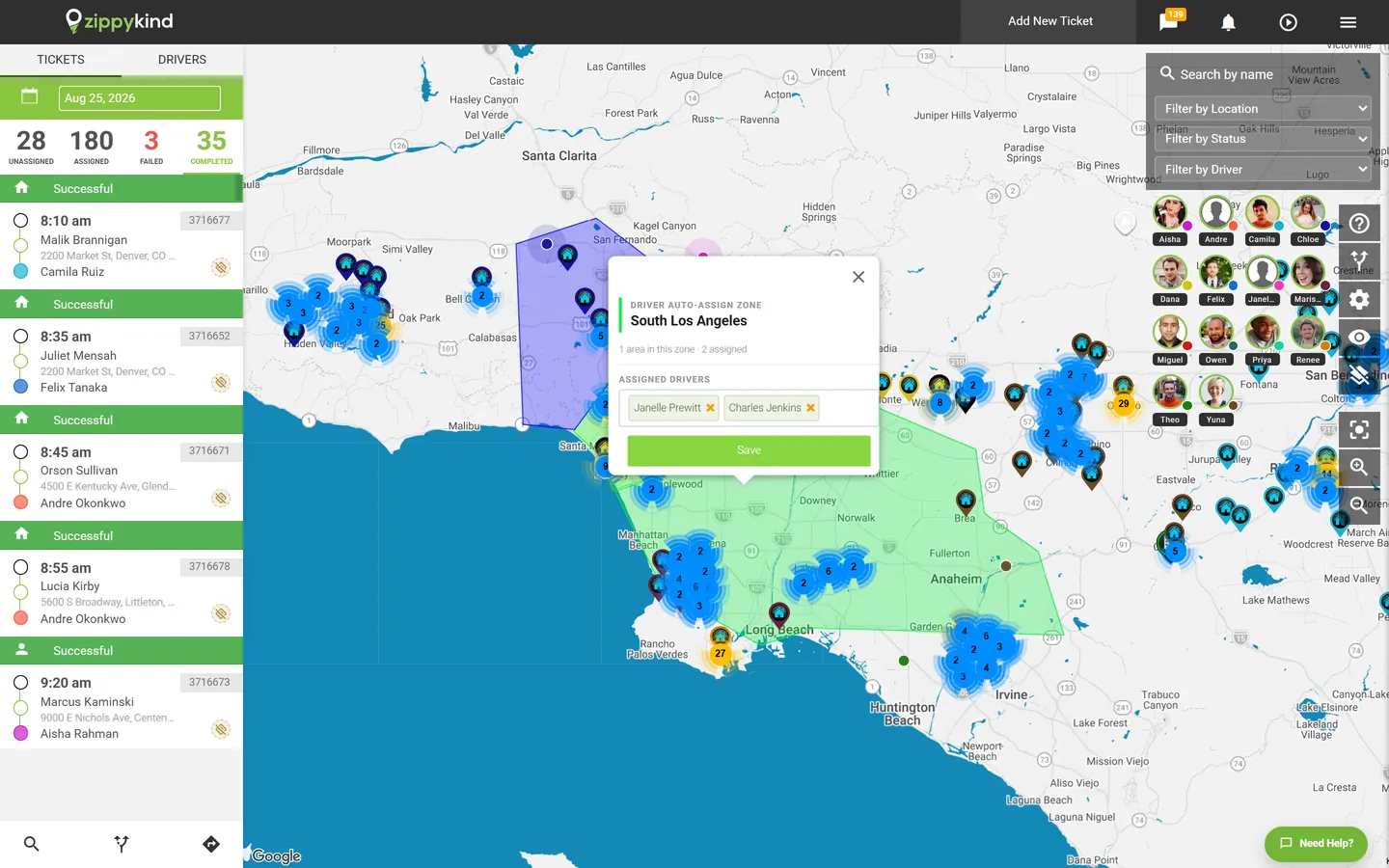
The same polygon drawing tool creates saved zones, and each zone type drives a different feature.
- Auto-dispatch zones. Draw an area, name the drivers who cover it, and new tickets inside it go straight to them. It is the zone tool behind automatic dispatch.
- Delivery zones. Draw the areas you deliver to, and the new ticket form shows which zone an address falls in so delivery fees and coverage stay consistent. See dispatch tools.
- Driver payroll zones. Put a pay rate on an area and every delivery completed inside it adds that rate to the driver's ledger. It powers driver payroll.
Dispatch and assignment tools
The auto-dispatch settings decide how a ticket finds a driver without anyone clicking. Offer it to the closest driver first, one at a time, or broadcast it to every driver at once with an expiry, a search radius and an email to you if nobody accepts. The live driver map on the GPS tracking dashboard shows every driver and every stop, and clicking a pin opens a quick view of the ticket behind it. For planning ahead, the drag-and-drop scheduler lays out the week, and business hours can refuse tickets that arrive when you are closed.
Proof of delivery tools
At the door, the driver app captures a photo, a signature and a GPS fix with a timestamp, and the proof of delivery record keeps every one of them. The barcode and QR scanner checks each package against the order, per item or per ticket. When the recipient is not face to face with the driver, contactless signature lets them sign on their own phone.
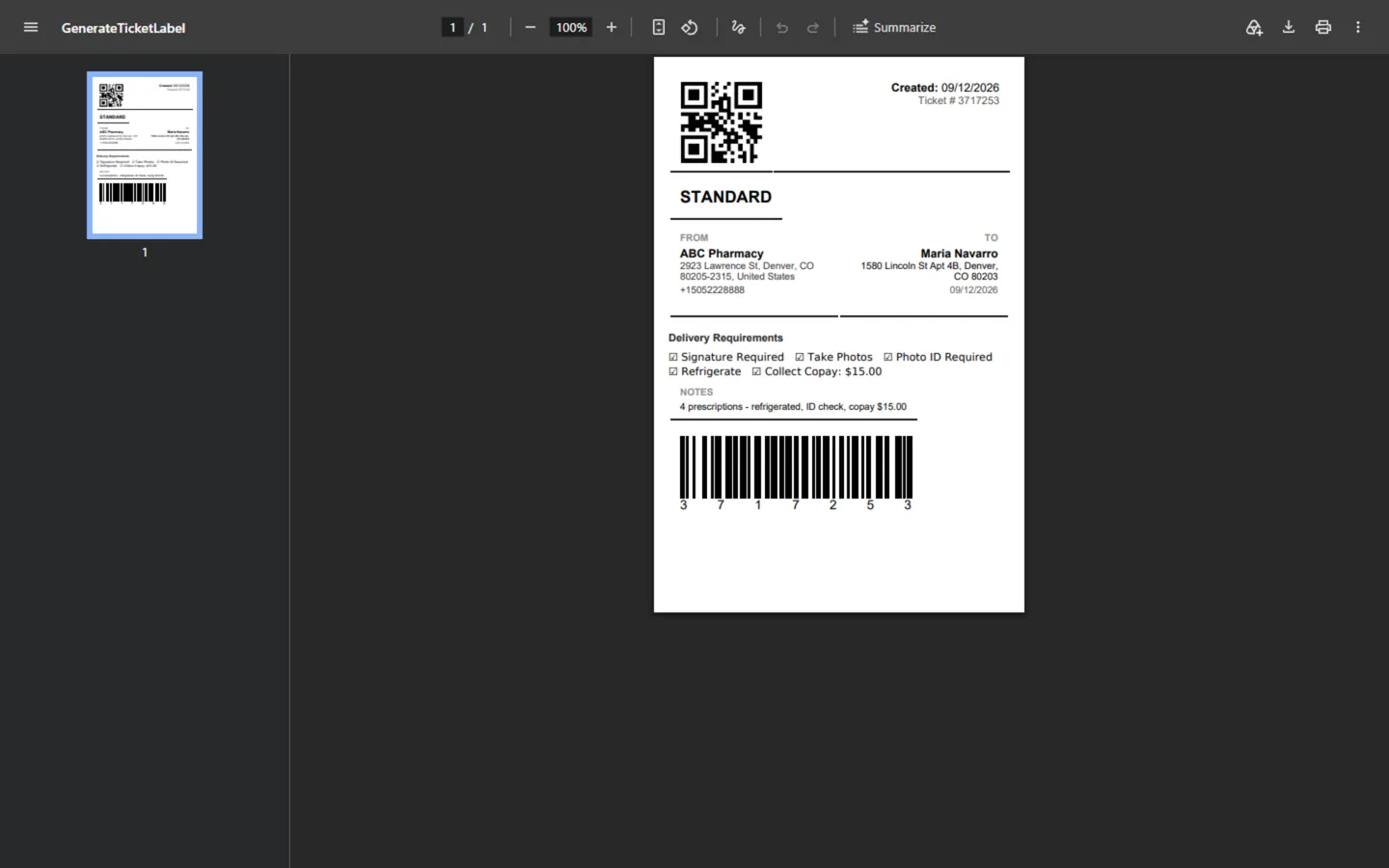
Printing tools sit on the tickets manager: a delivery label with a QR code and the delivery requirements as checkboxes, a packing slip with a barcode on every item, and a delivery ticket PDF with the full chain of custody. All three live under delivery tickets.
Customer notification tools
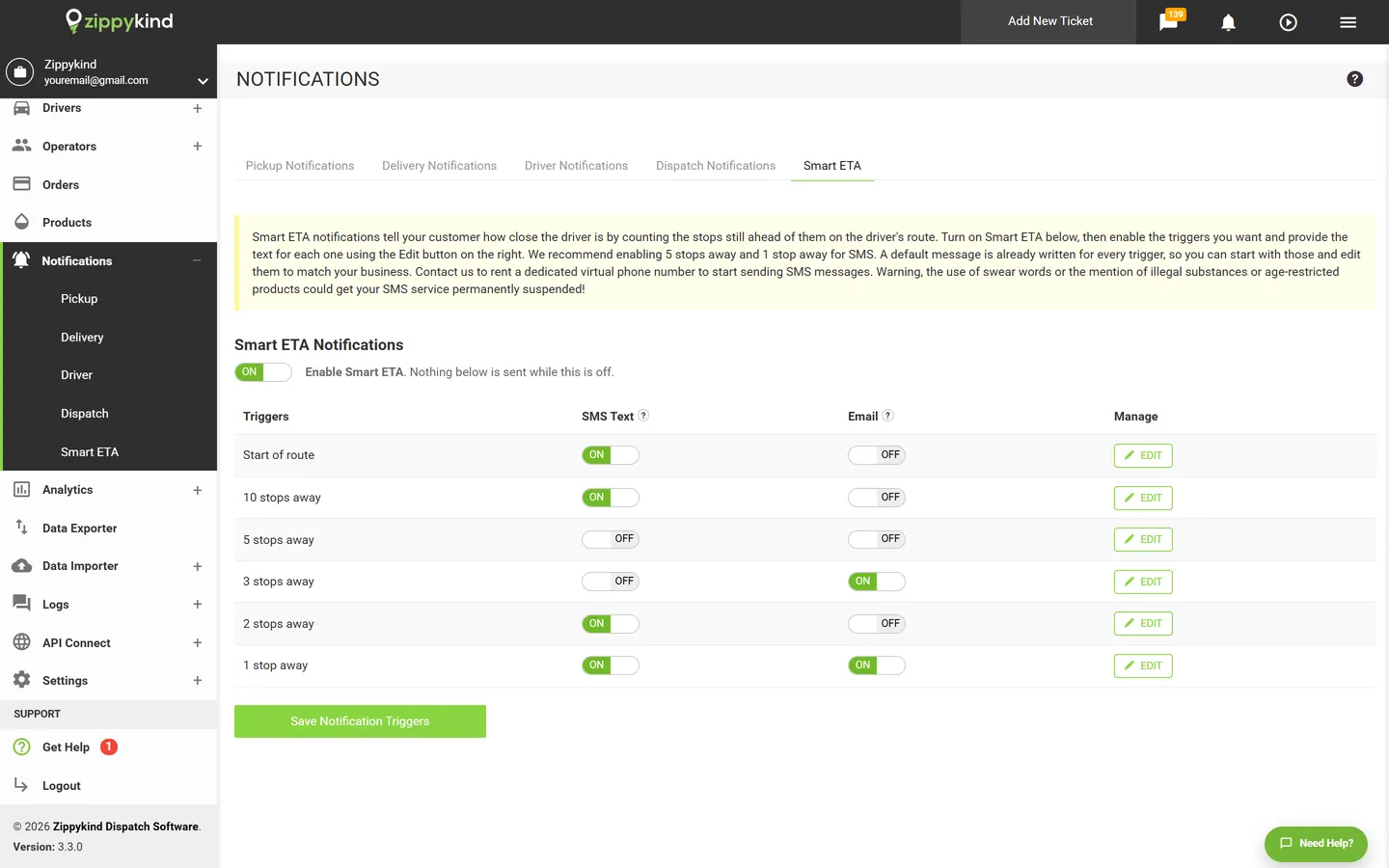
Notification triggers send an SMS, an email or both at each step, from ticket created to delivered, and every message is a template you can edit with tags for the customer name, the ticket and the tracking link. The Smart ETA tool counts the stops still ahead of each delivery and texts the customer at the distance you choose. It all lives under delivery notifications, and the customer follows along on a branded live delivery tracking page.
When a customer replies, the Message Center keeps the customer, the driver and your operators in one thread, docked over the map so nobody leaves dispatch to answer it.
Data tools
The data importer brings in tickets, customer accounts and product catalogues in four steps, and remembers your column mapping as a saved template. The CSV exporter pulls driver performance and delivery data with the columns you choose, and delivery analytics charts outcomes, proof of delivery rates and failed delivery reasons. For everything else, the open API and webhooks connect Zippykind to the systems you already run.
One platform, every tool included
Each of these tools is part of one delivery software platform rather than a separate app to buy and connect. Start a free trial and every tool on this page is available from day one, or see the complete list on the features page.


